My laptop has always had a glitchy UEFI menu. Since I've recently been introduced to CPPC, ACPI P-states and AMD's pstate kernel option to optimize performance and battery life, I spent some time trying to get this to work on my system. I fell into a bit of a rabbit hole involving bootloaders, UEFI, boot management and low level system configuration, so I'm documenting the weird quirks and interesting stuff I found during that process.
What this is for/CPPC guide expectations
The primary purpose here is to show you how to toggle options (but specifically enabling CPPC) using UMAF Smokeless while still retaining access to your motherboard's setup menu so you can use it for Secure Boot.
If your version of InsydeH20 does not have a weird quirk where it blocks setup access if you have other boot entries, you can skip the fix section. This might be helpful if you are able to reconfigure the boot order (so you aren't dumped into the boot device manager every time you start your system) and want to retain access to AMD PBS/CBS config for overclocking or further configuration later.
You should only follow the CPPC section tutorial if you are certain your system does not already enable it (you should have amd_pstate already recognized in your kernel). Opening Smokeless on your system is risky (albeit easy to recover from) and you should have a solid understanding of what you're doing before you overclock, softbrick or permanently damage your computer.
This is written for an Acer Swift 3 SF314-42-R9YN but can be applied to basically any UEFI device powered by a Ryzen chip. These instructions are tailored more for an InsydeH2O system and its quirks, and may not be applicable to other UEFI systems.
You should have a FAT USB drive with Smokeless UMAF installed on it already. Secure boot should be disabled.
Yes, there are a lot of images here, it's more for documentation than anything.
What is CPPC/amd_pstate and why do you want it?
CPPC allows for amd-pstate, a Linux interface which (in simple terms) allows for both better battery management AND system performance. It's the most versatile and powerful CPU driver for AMD chips, and honestly it should be the default on any new Linux-powered AMD system (especially for laptops, in which these two properties are especially important!)
For whatever reason, this option is shipped disabled by default in a lot of somewhat older laptops (even if they support it just fine!) and systems shipping with InsydeH20 only allow for basic user access to the Setup menu. I guess to keep things simple and to save on warranty repairs, a lot of fine-tuning options are not visible in this menu (and even in the hidden advanced menu). To access these more advanced AMD menus, you have to use Smokeless.
Garbage boot entries (& special instructions for secure boot)
For my laptop, the Acer setup menu has always been glitchy whenever unknown or non-internal boot devices are listed in the menu. For whatever reason, even plugging in a bootable USB drive into my computer will completely hang the setup menu, so the only way to boot from USB on this laptop is to enable the F12 boot manager and boot from there.
When you boot into Smokeless, it's going to create 6 different garbage boot entries which will glitch the setup menu. I'll show you what these boot entries do later in this entry but the important thing to keep in mind is that you will be locked out of Setup for as long as you have boot options other than your internal drive listed (assuming your system has the same quirk as mine)
For secure boot, this is where things start to get a little bit dangerous. You could get locked out of your UEFI setup, and not even removing the CMOS battery will fix you from being forced into booting with those keys. So be careful!
Using Smokeless
While you are still in the setup menu, you will want to enable the F12 boot device manager. You'll need this to boot into Smokeless. Then reboot and simple use the F12 key to boot into Smokeless. The screen should look something like this:
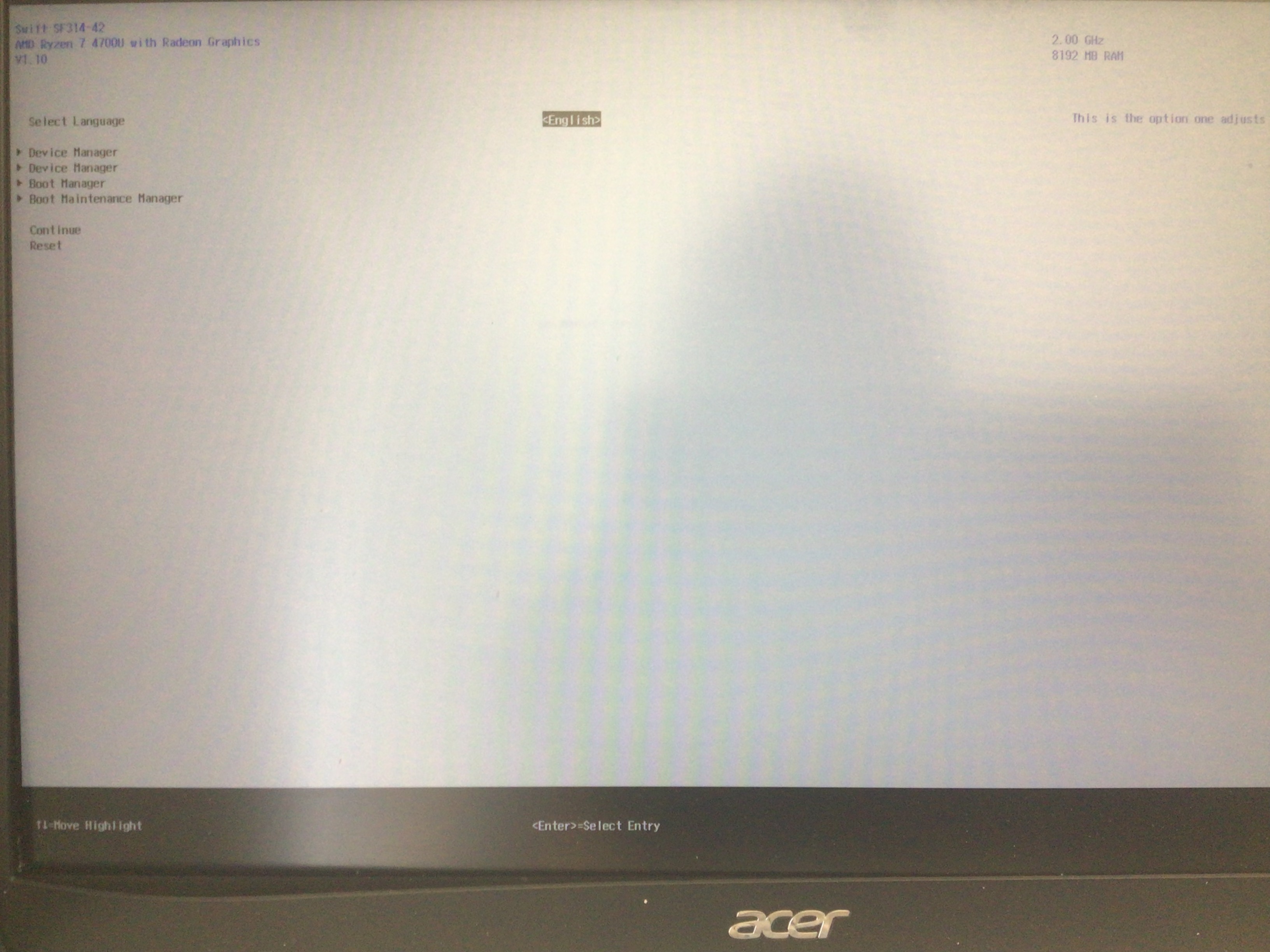
Now this might sound counterintuitive, but you need to reboot your computer here and unplug the Smokeless USB. You don't need to explore any of the settings since you will have access to all of these but through InsydeH20 instead and it'll be safer. The only reason why we needed Smokeless was to reveal these hidden menus that Insyde provides.
Enabling CPPC
When booting your computer back up, you don't even need to press F12. You will be automatically prompted into a boot device selector showing all of these new boot options:
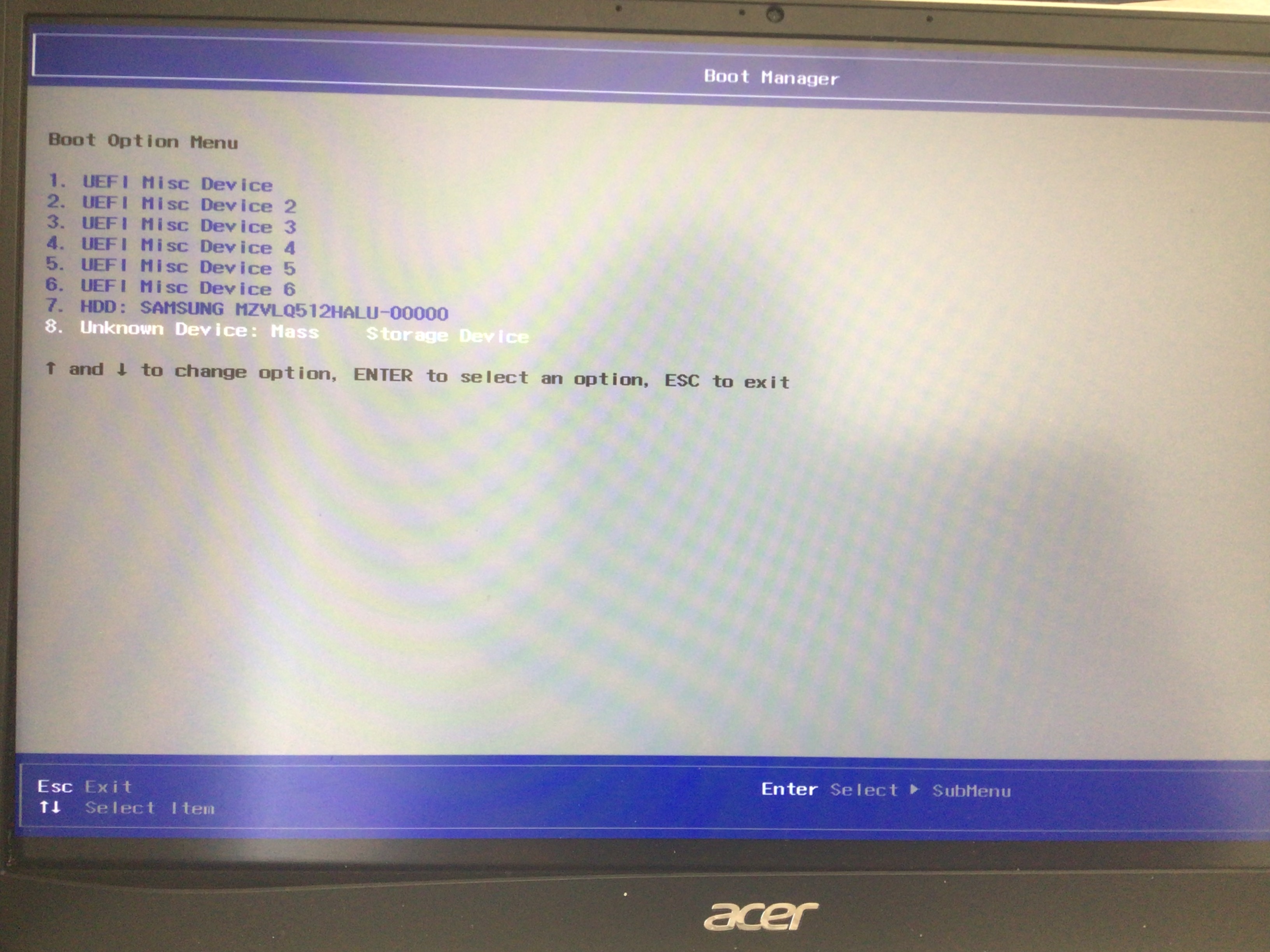
Select option 4. It will boot you into this menu:
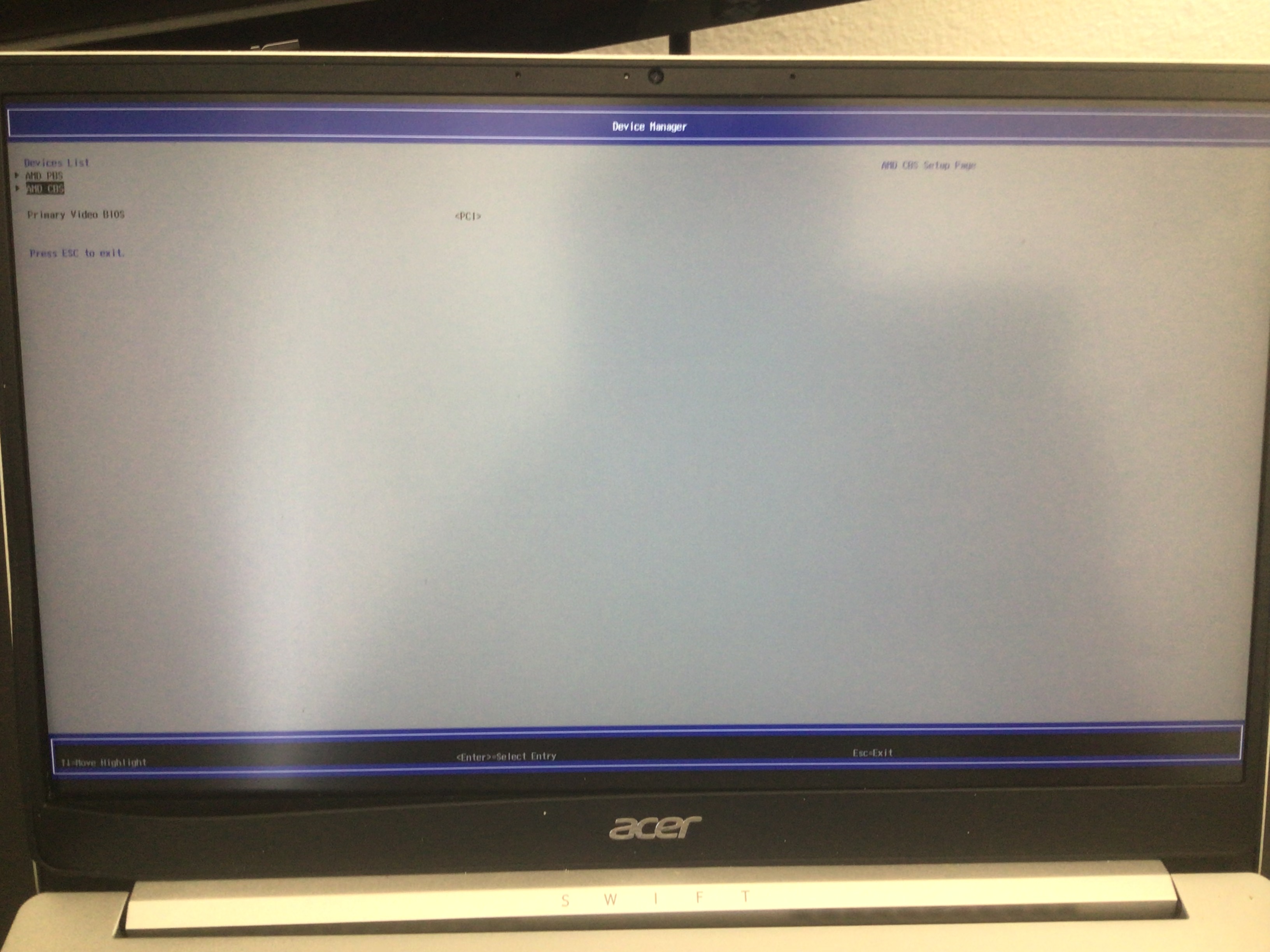
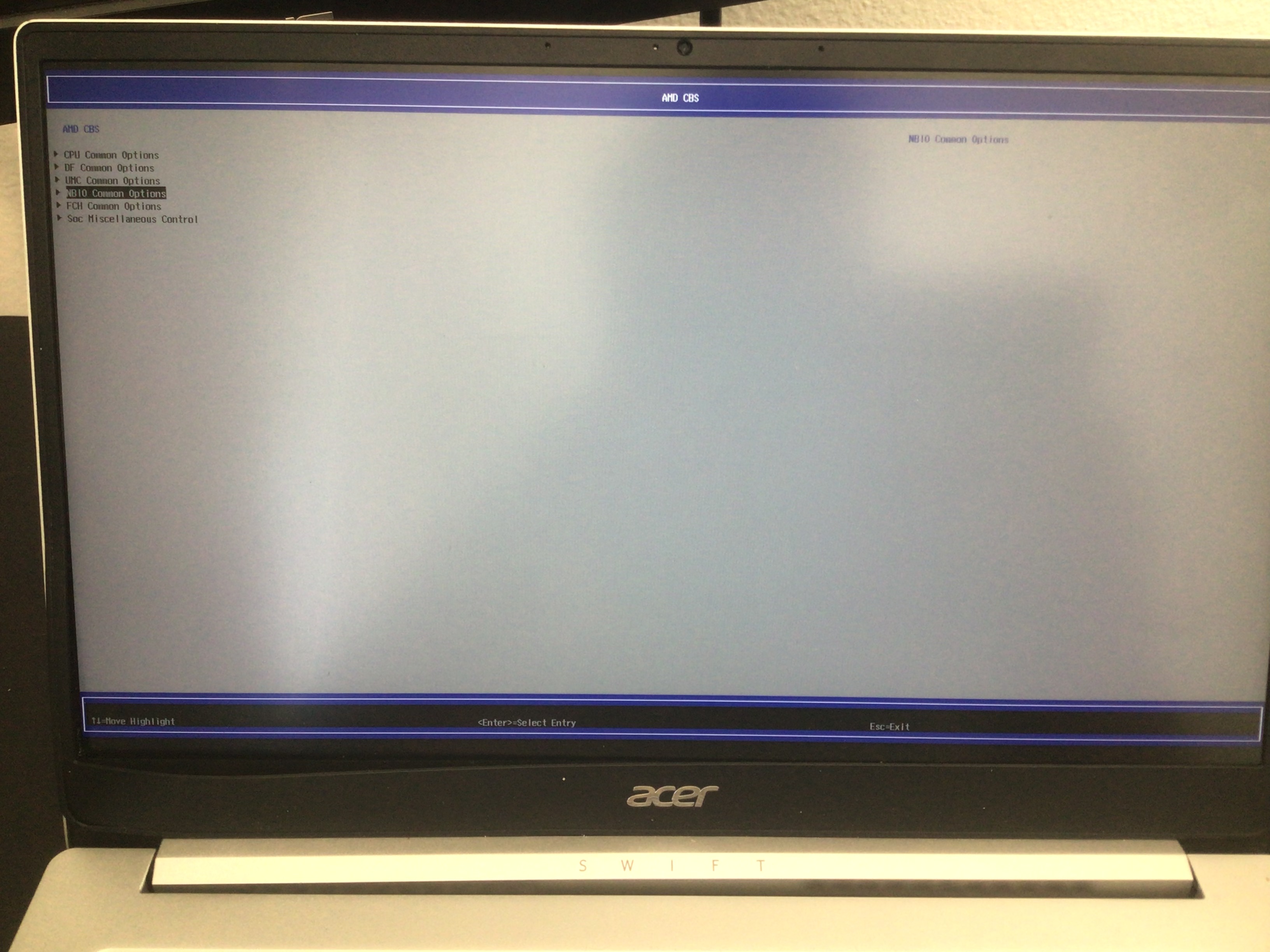
Then follow the options selected in these images to get CPPC enabled:
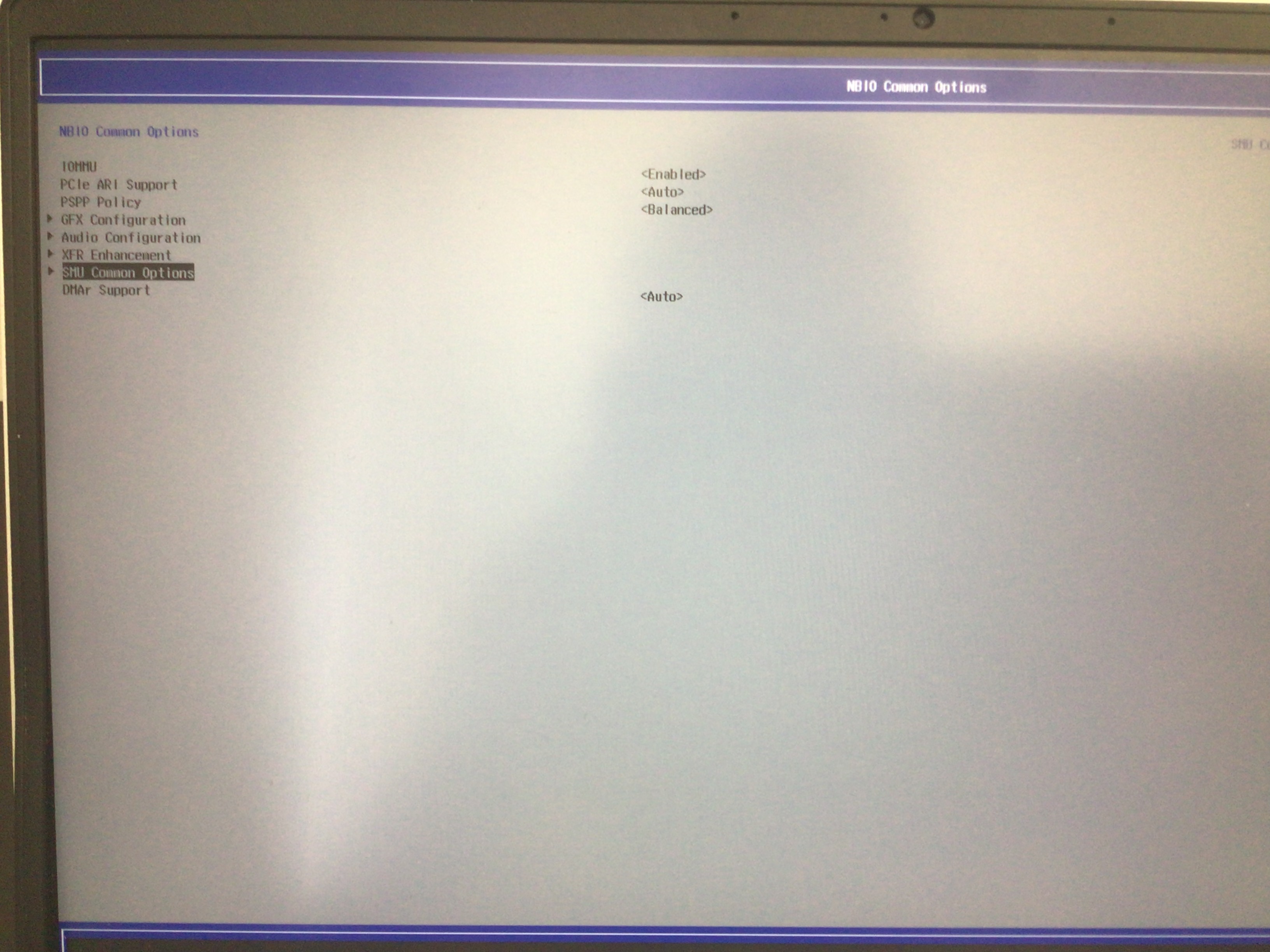
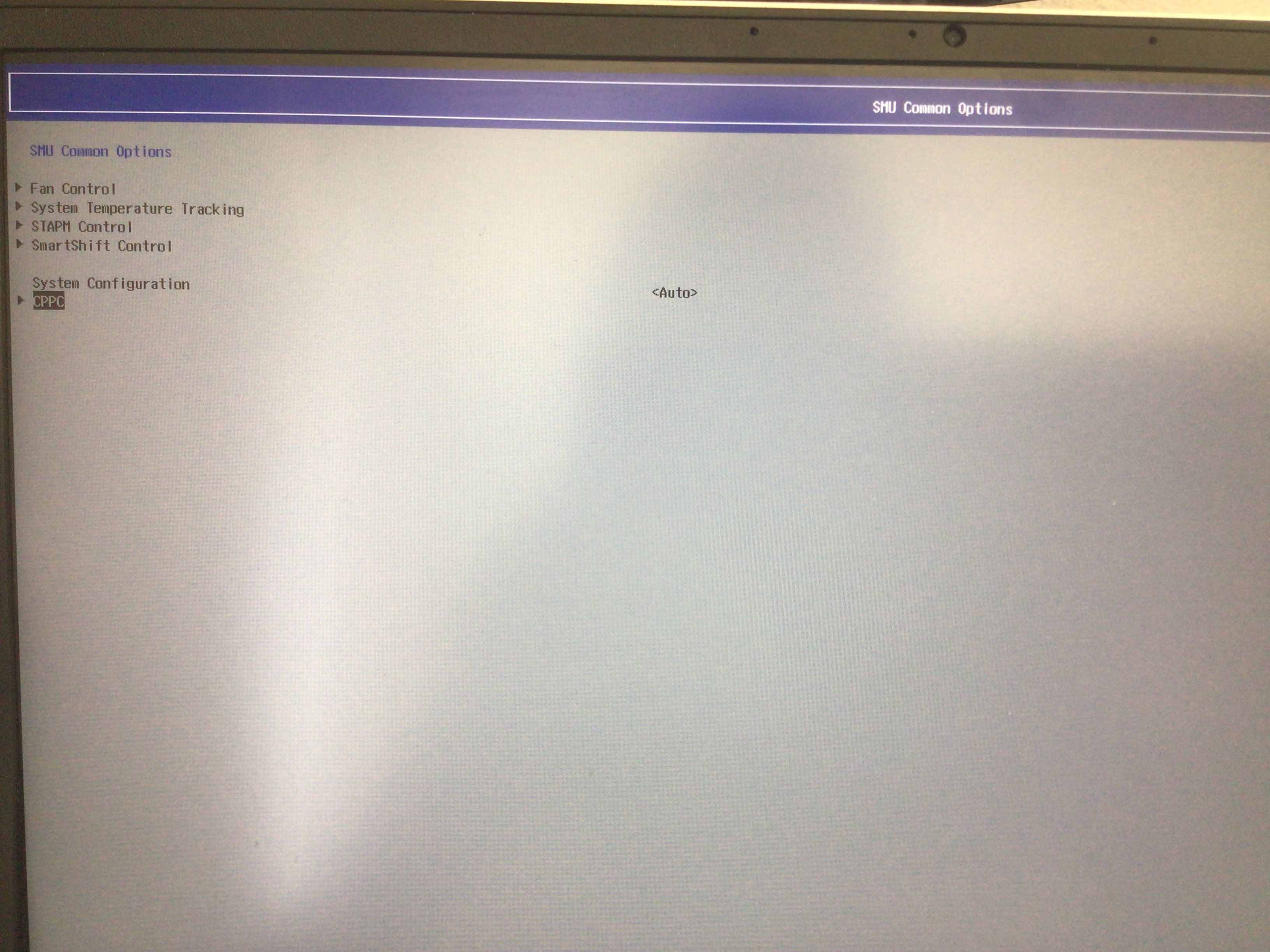
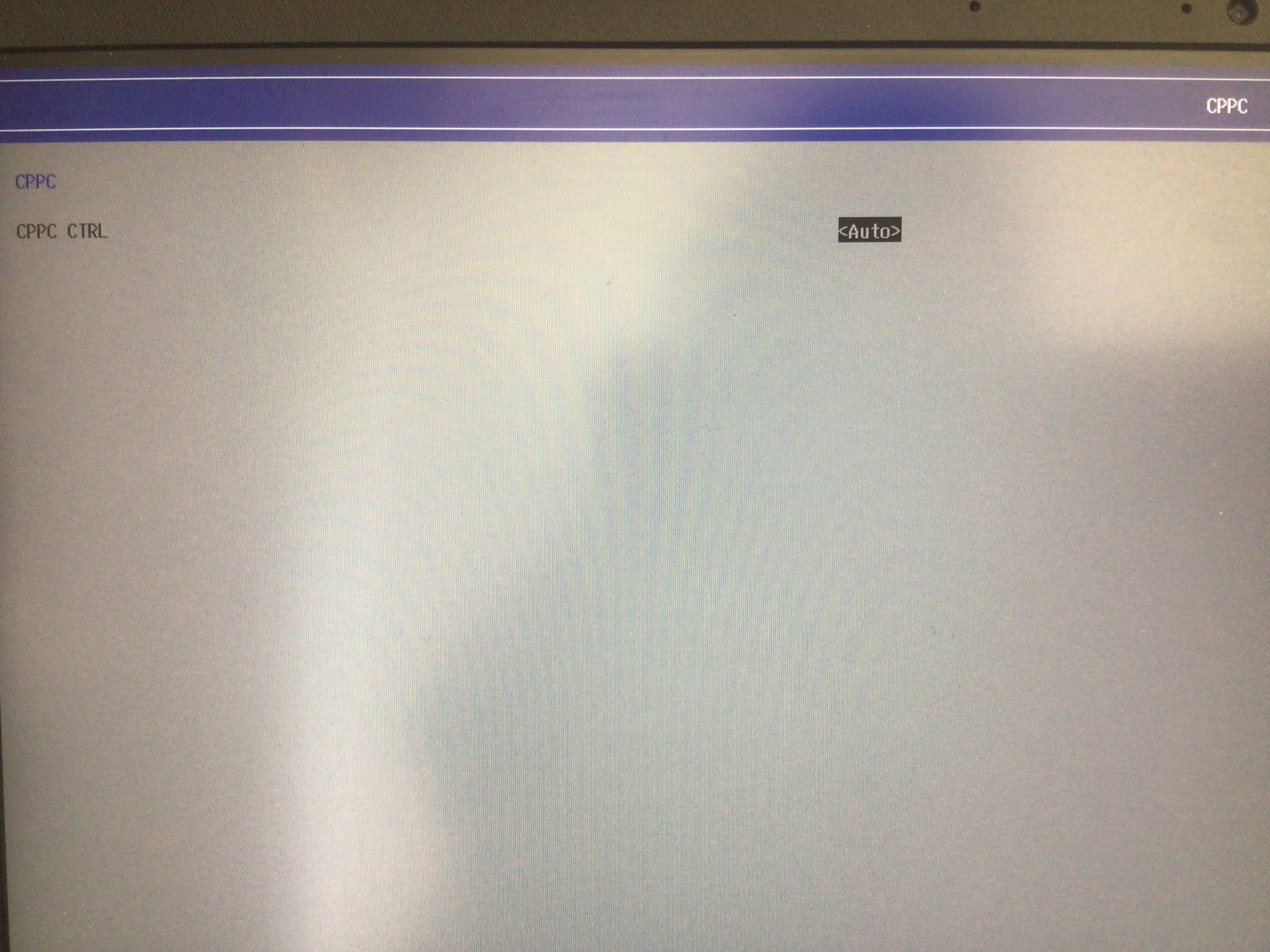
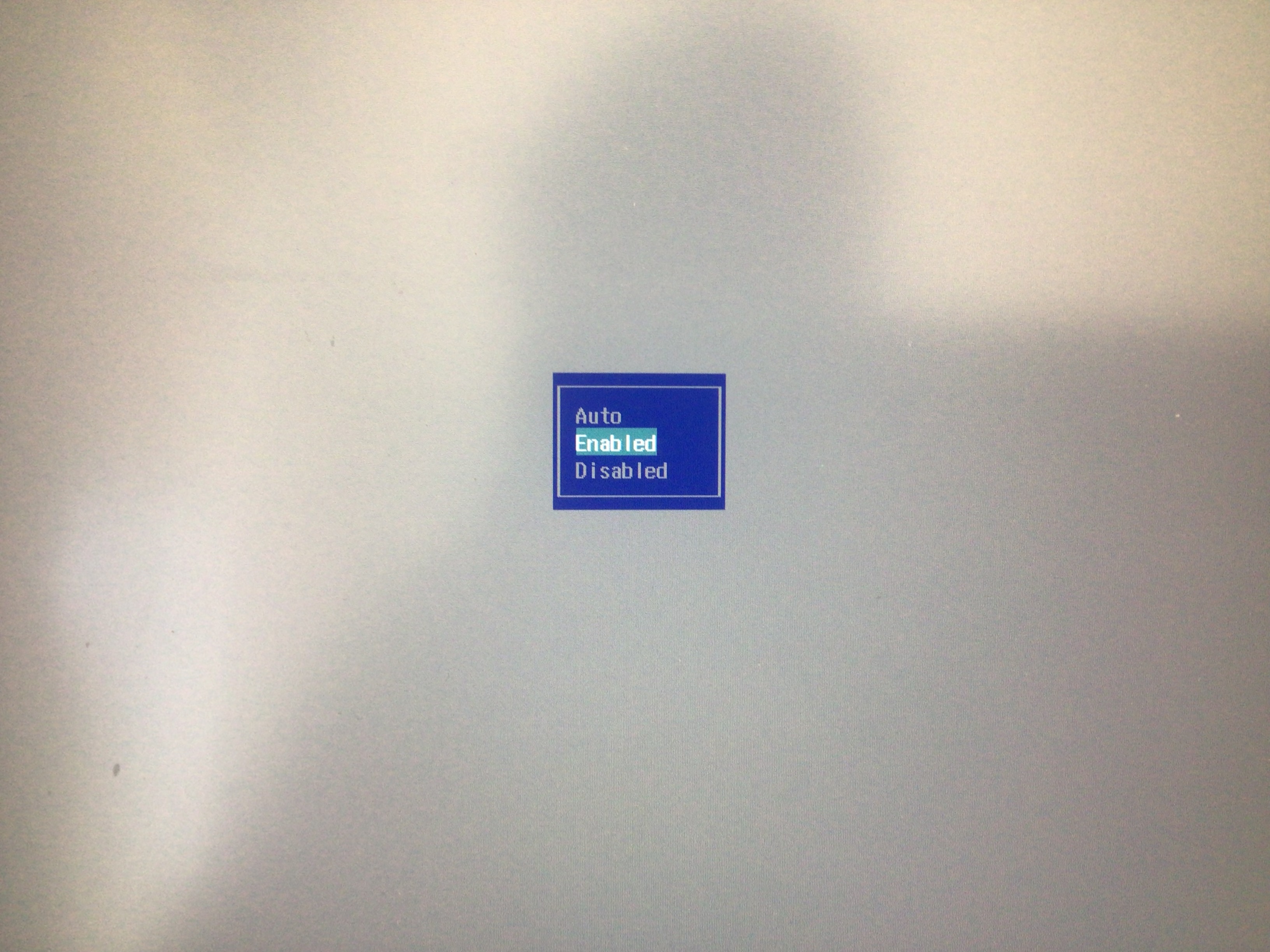
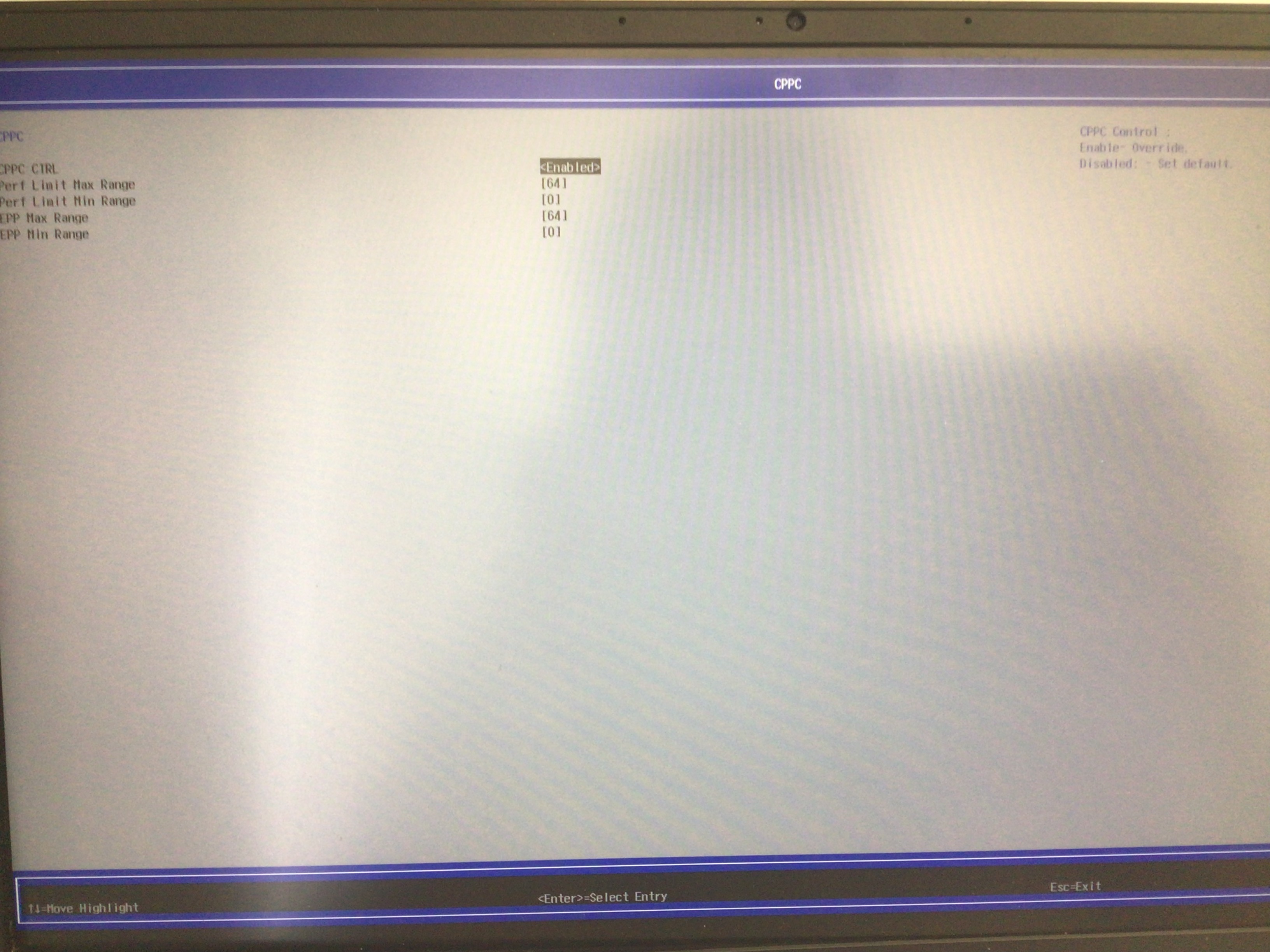
Exploring the boot options
This section is mostly for documentation. You don't really need to mess around with these menus yourself if you are just trying to get CPPC and setup access working.
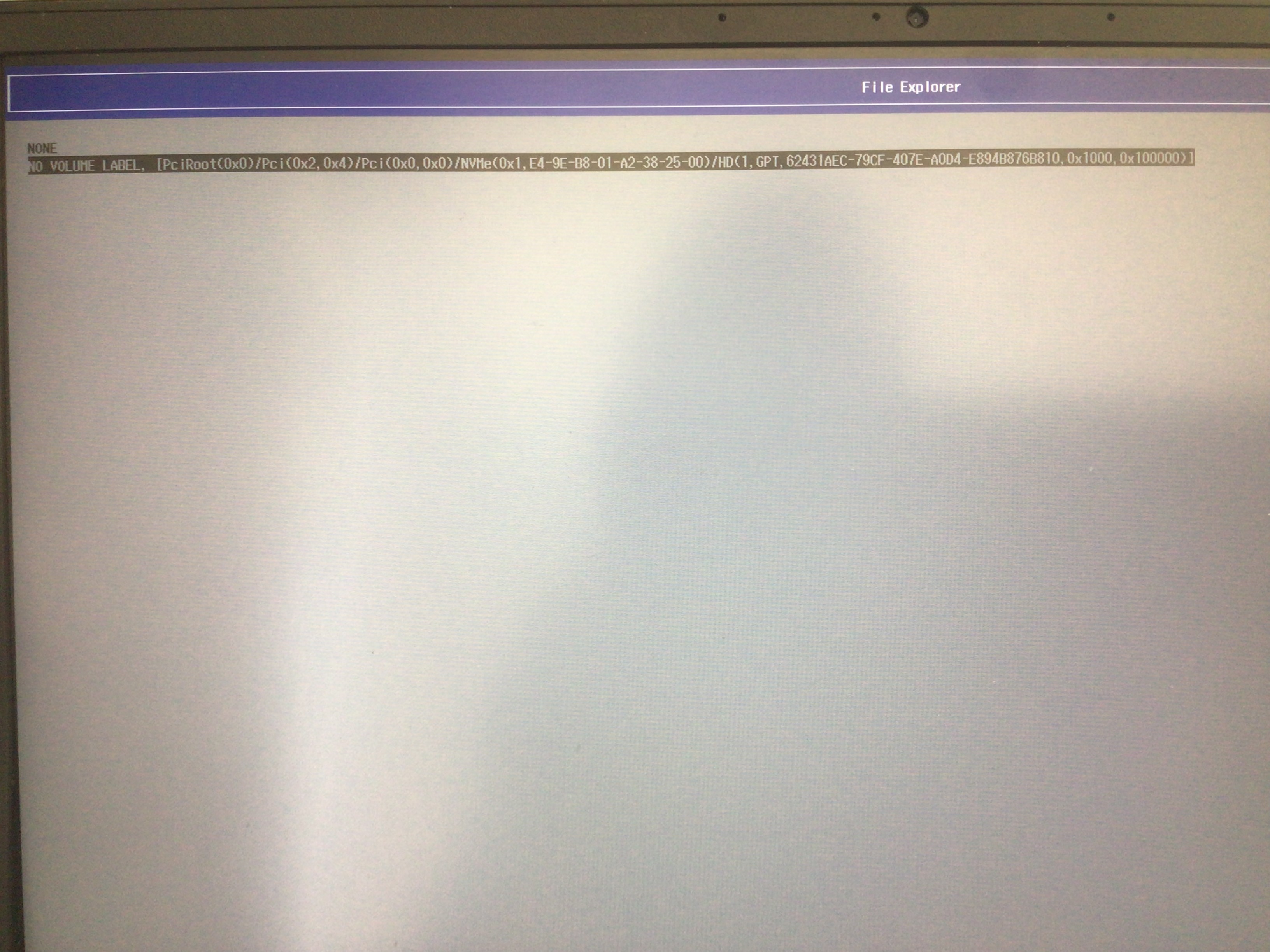
This is probably what the Acer system developers used when bringing up this system. You have full access to all the AMD settings through these boot options. For UEFI misc device (1), it did nothing and just reopened the boot device menu. For UEFI misc device 3, it opened up this really neat file explorer for finding a boot file:
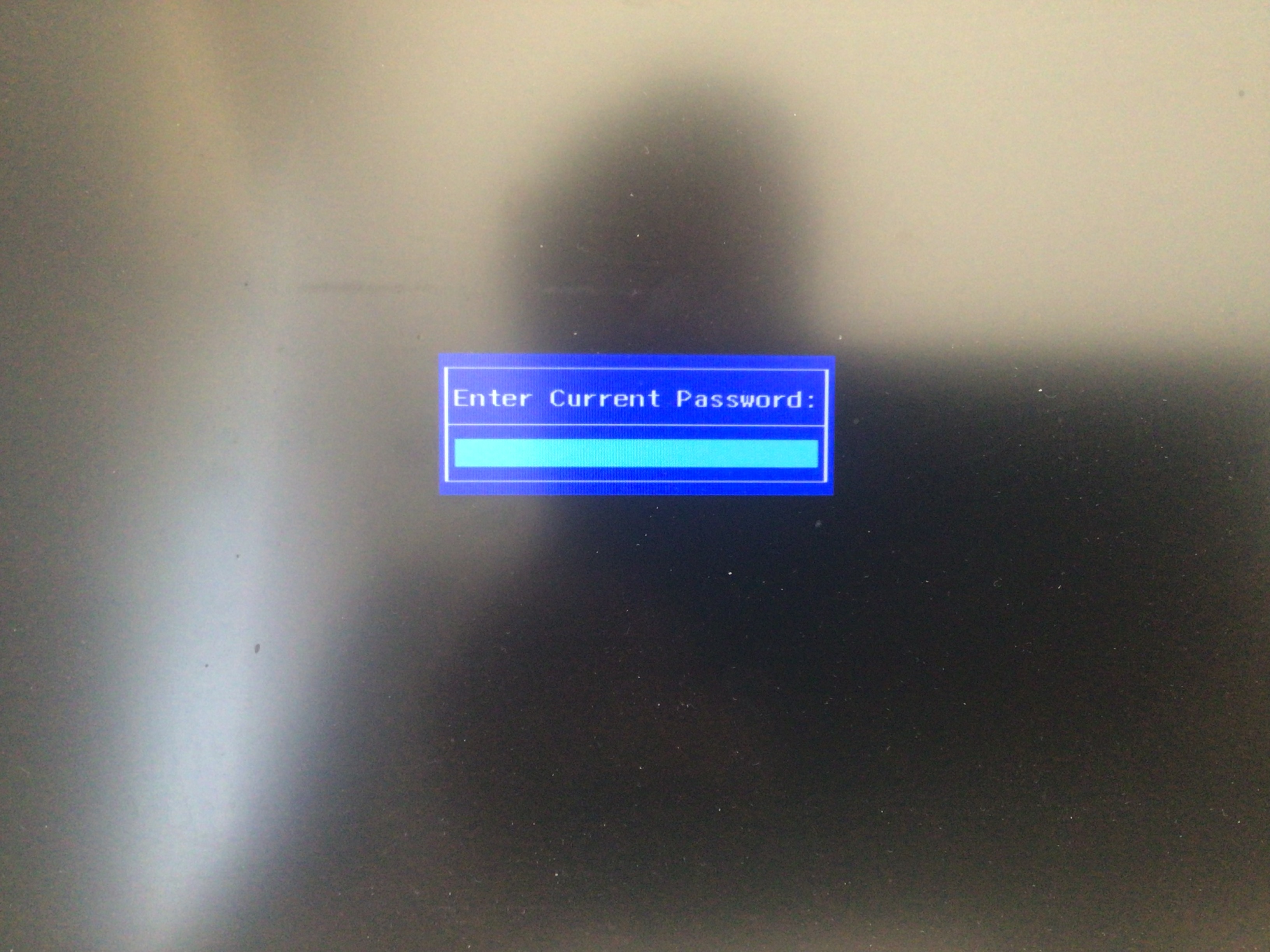
UEFI misc device 4 brings you into the device manager which is what we used to enable CPPC. What's interesting is that this prompted me for my supervisor password (something that Smokeless bypassed).
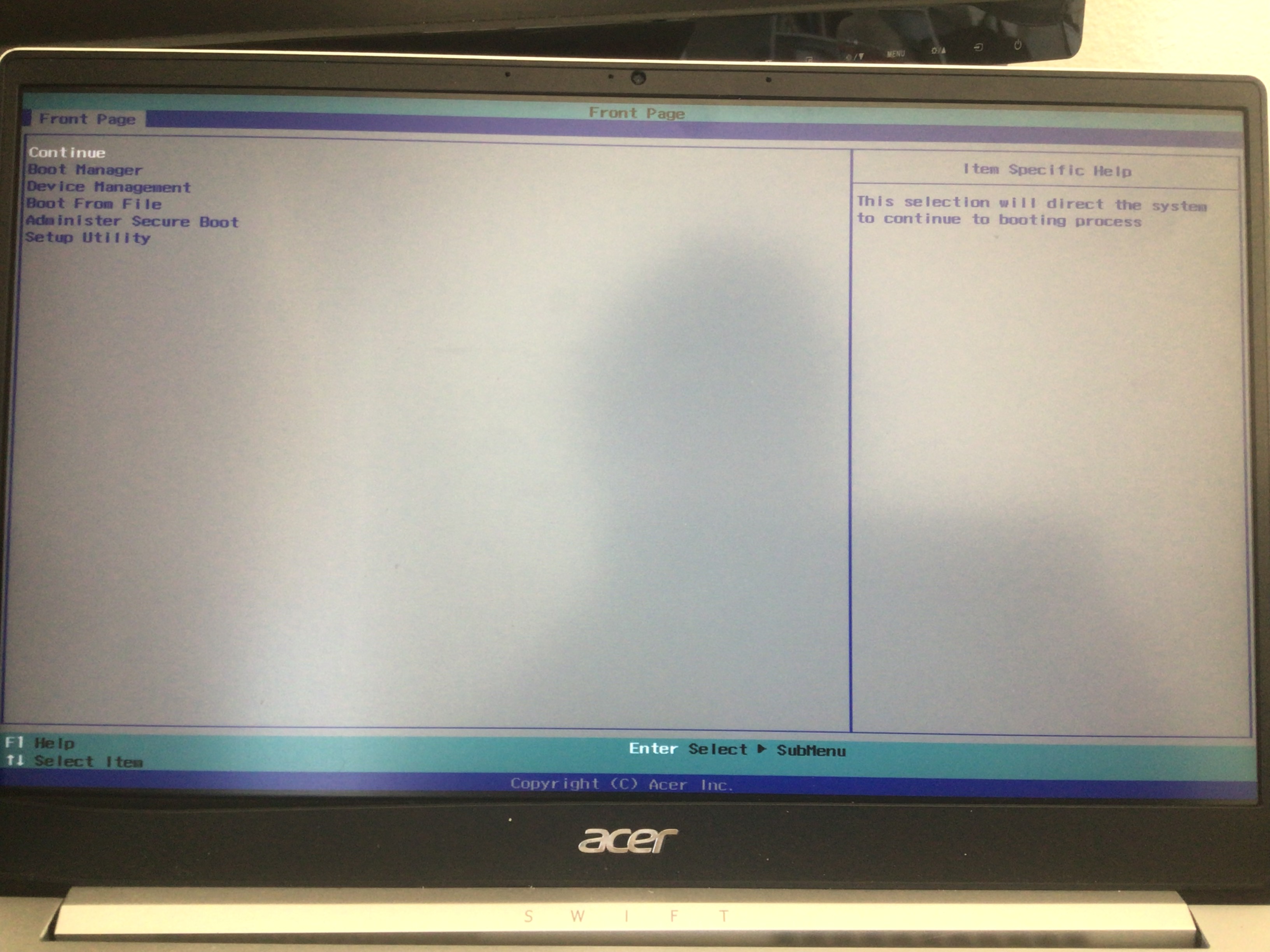
Option 5 opened up a new menu: the front page. It is nice to have this menu which is likely what was used by the Acer hardware engineers. If only there was an easier way to access it without Smokeless!
If you are wondering, it seems like each of these options correspond to a boot entry, except for Setup Utility. Device 5 is the secure boot administrator:
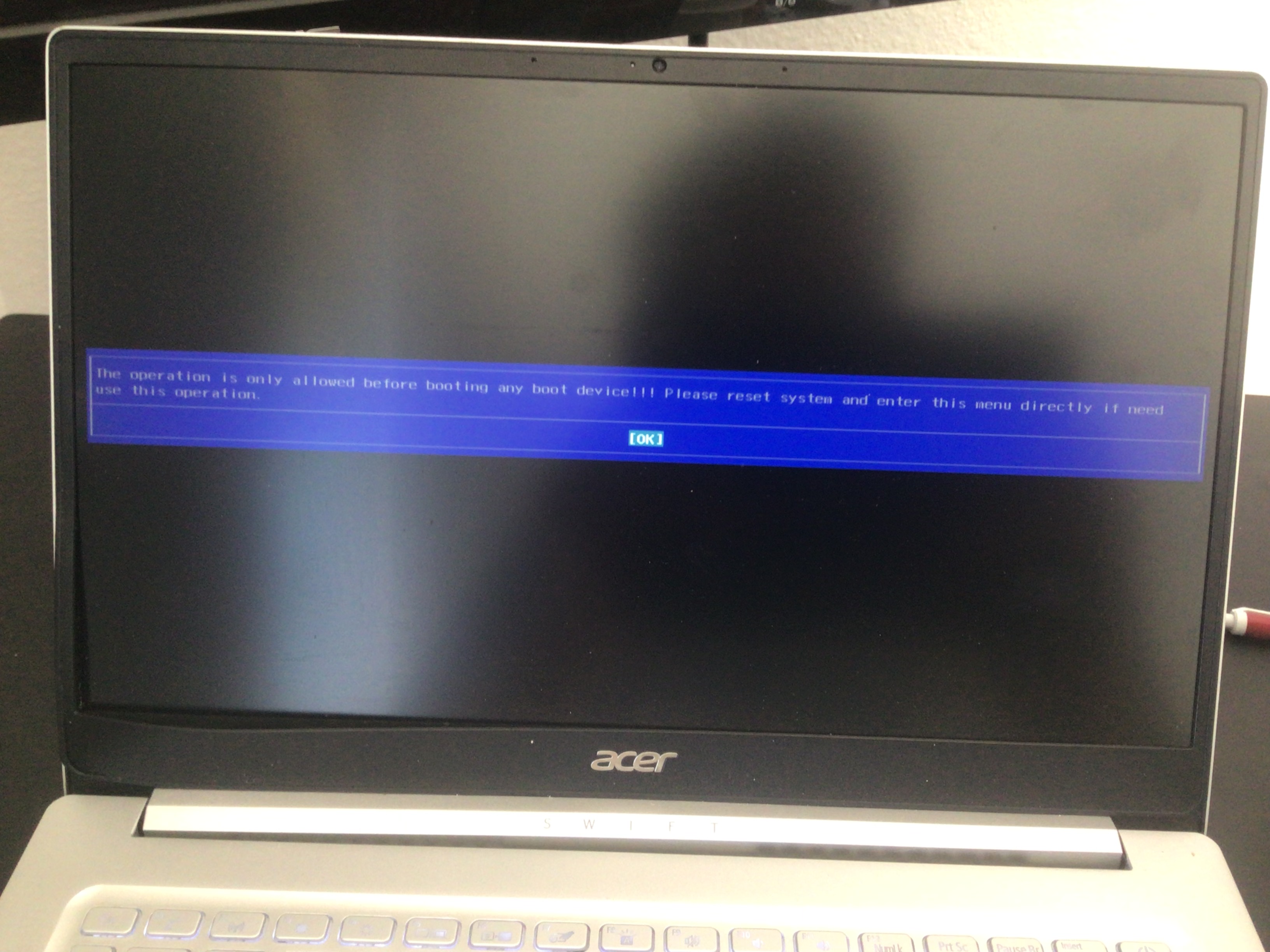
Not really sure what the error means since we haven't booted anything yet, kind of confused by the point of this menu honestly. And option 6 is of course the setup menu, which we currently cannot access. If you are wondering, this is what it looks like when you try to boot directly into the setup menu (using the boot entry) while you're locked out due to this quirk. It's a blank screen with a cursor in the top left corner (it's a little hard to see)
And if you're wondering what it would look like when you boot into setup mode by pressing F2 on boot, it's basically just the Acer logo flashed once and shown infinitely (and you have to power cycle)
Check if you are using pstate
This should be detected automatically, but if it didn't then you can add amd_pstate=active to your kernel params.
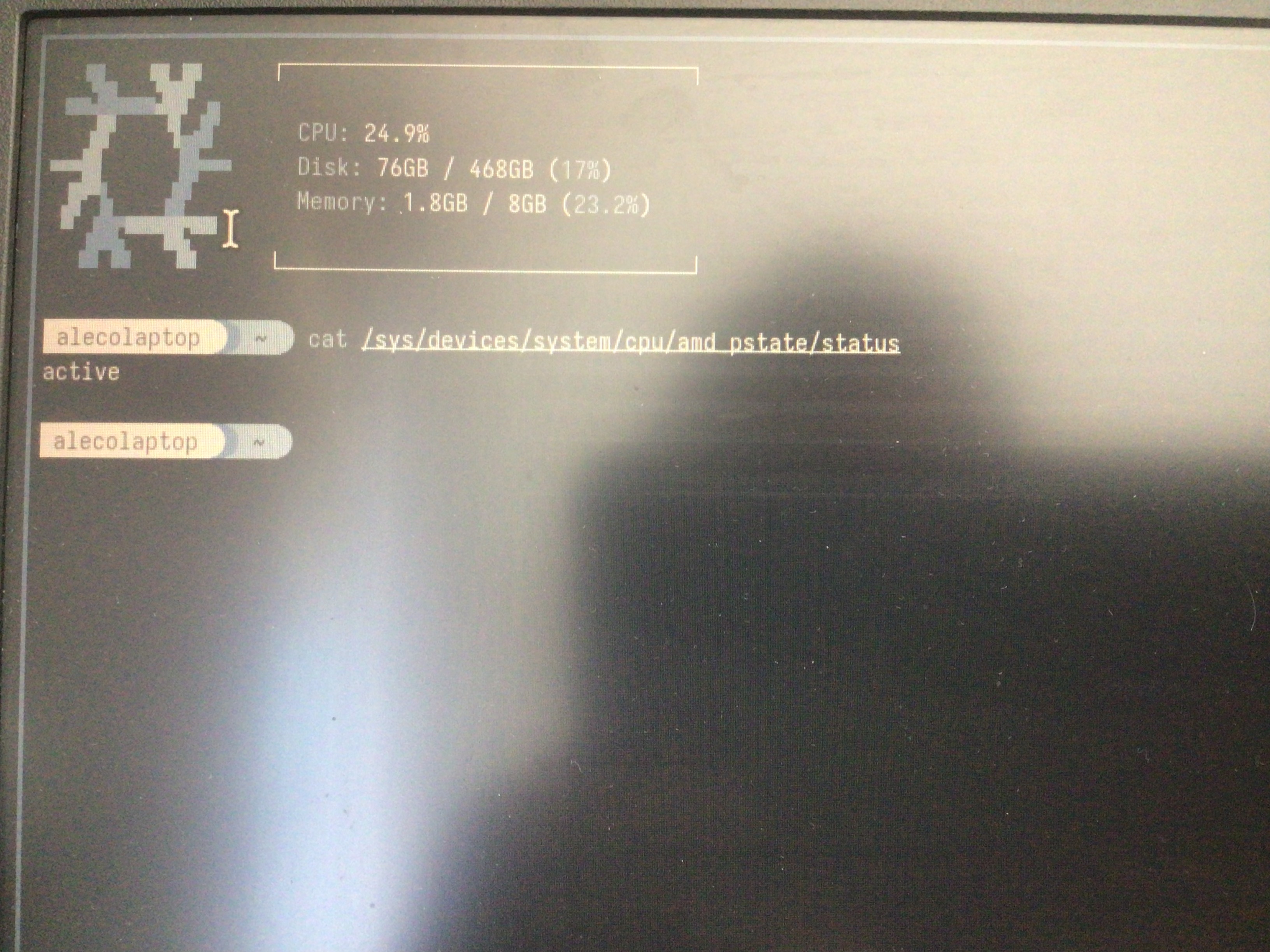
To make sure that you are actually using pstate, run cat /sys/devices/system/cpu/amd_pstate/status and confirm it returns active
Fixing the setup menu
Now, as you are still locked out of setup mode, you won't be able to re-enable Secure Boot which means you should boot back into your system. We need to clear all the bogus entries that Smokeless just made so we can regain entry to Setup.
First, run efibootmgr -v to make sure that you have access to the garbage boot manager options. Make sure that you don't delete the wrong ones - you should only delete the entries that mention 'UEFI boot device'. For me this corresponded to boot devices 0004-0009. Don't delete any of the other boot options, that will do nothing.
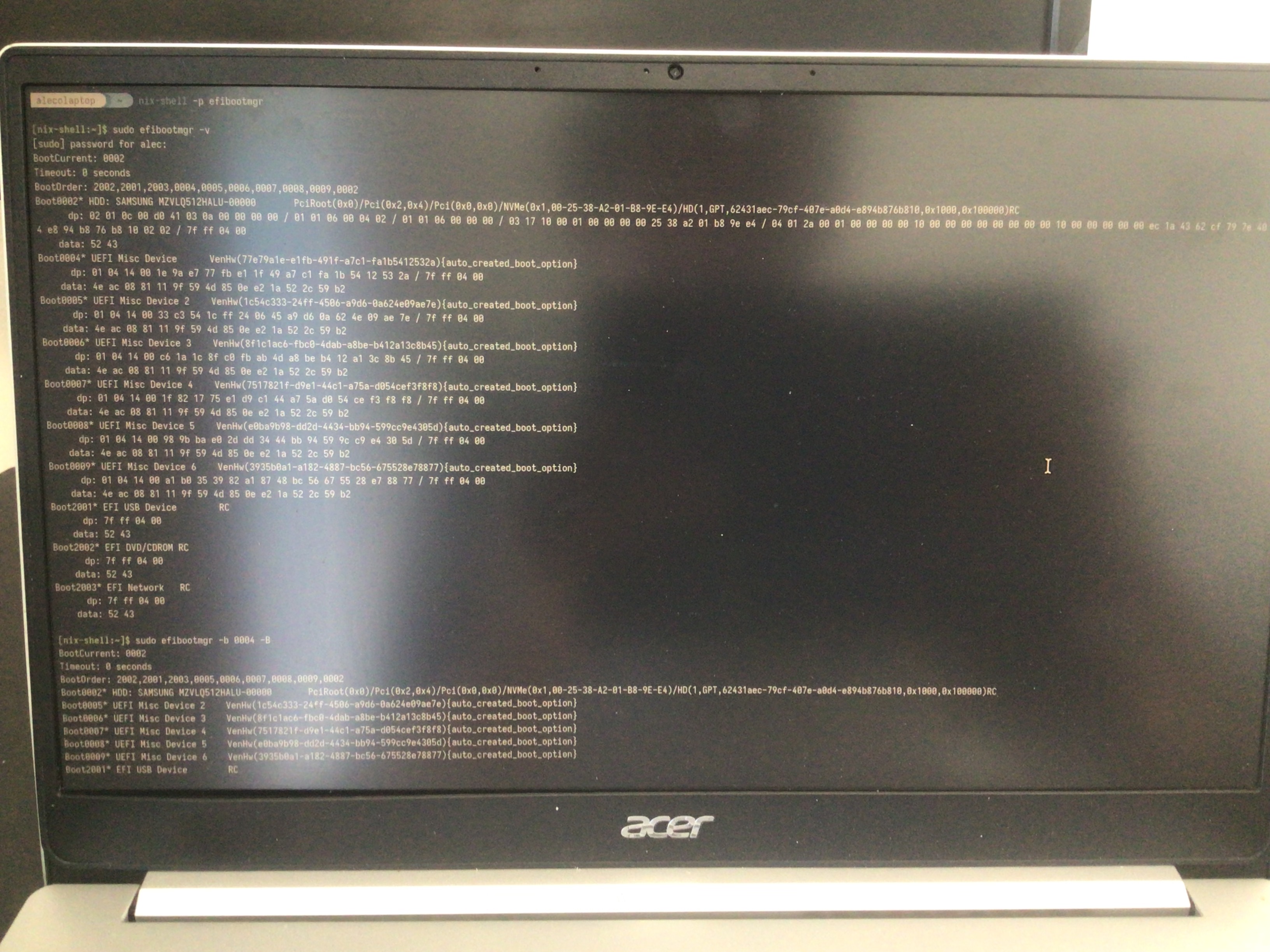
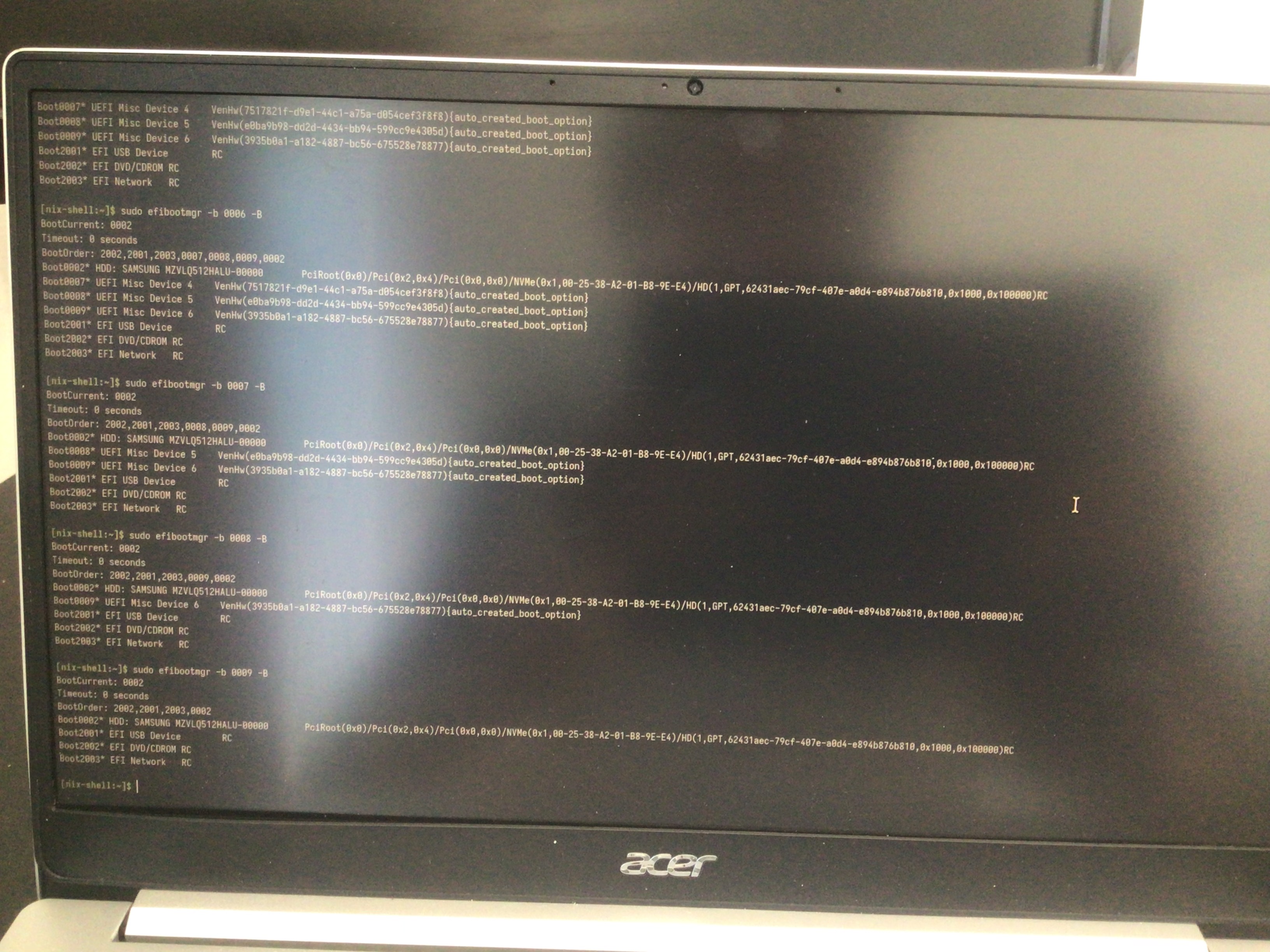
When you're done, just reboot the system and press F2. Enter your supervisor password and re-enable secure boot (and remember to run sbctl to make sure you're properly secured)
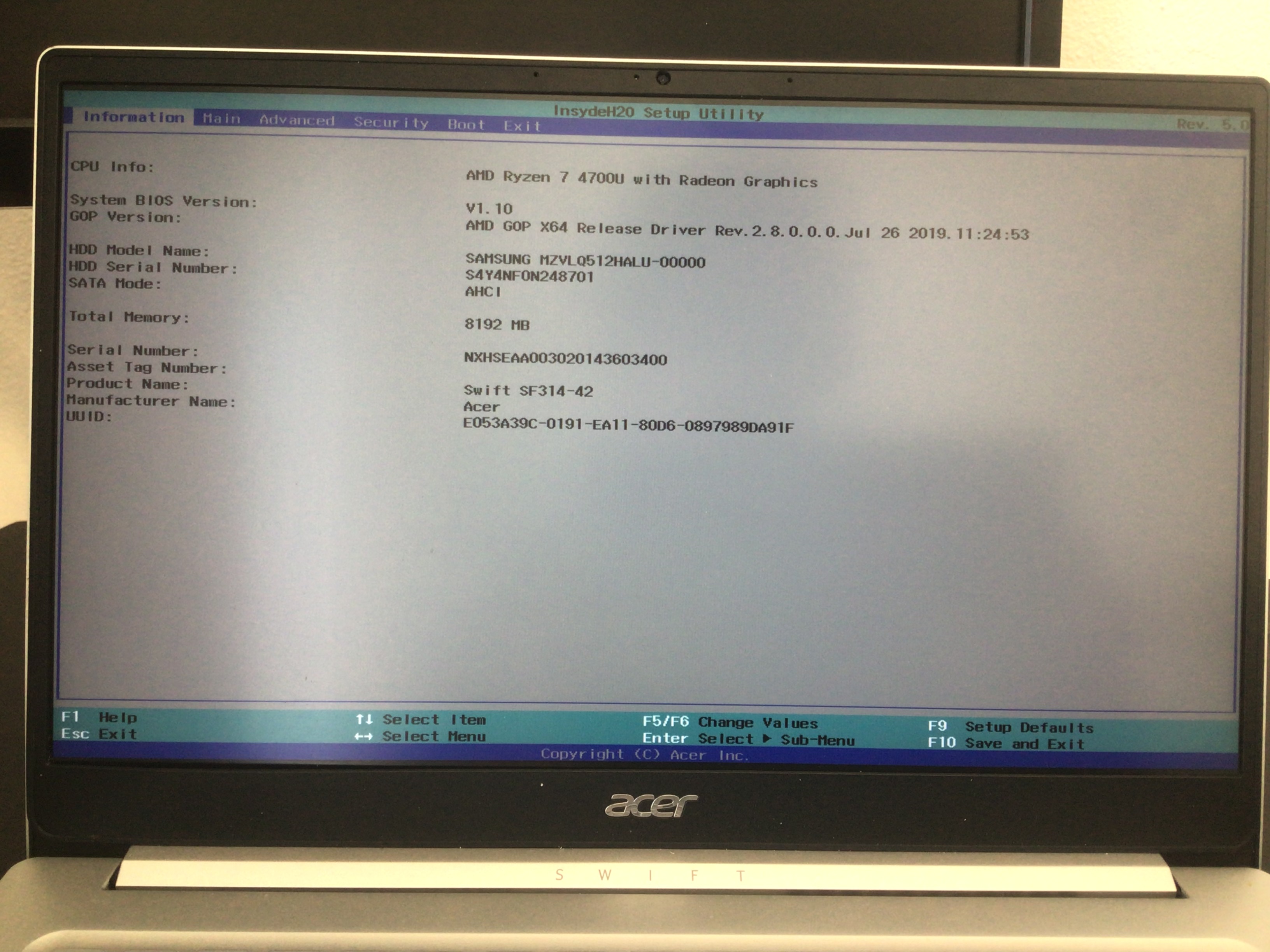
And you're done! Enjoy the improved performance and battery life!